PaywallProject 4.1 is here. It saves your staff time on subscriber support, brings back readers who leave checkout, and keeps your e-edition for paying readers.
Here’s a quick summary of what changed:
- Support from an AI app: connect Claude or another AI app to your site, then ask it to look up subscribers and handle support tasks.
- Billing in wp-admin: refund a Stripe payment, and cancel, resume or reactivate a subscription, without opening Stripe.
- Win back checkouts: reminder emails for readers who leave checkout, and a sign-in step on the default and hosted layouts for readers who already have an account.
- Protect your content: e-edition PDFs for subscribers only, and gift articles limited to the categories you choose.
Support from an AI app
Connect your AI app in a few clicks
You can now connect an AI app, such as Claude Desktop, Claude Code or Cursor, to your site. Then you ask it questions in plain words, like “Why did this reader’s card fail?” The app finds the answer with PaywallProject’s tools. This uses MCP, an open standard that AI apps use to talk to other software.
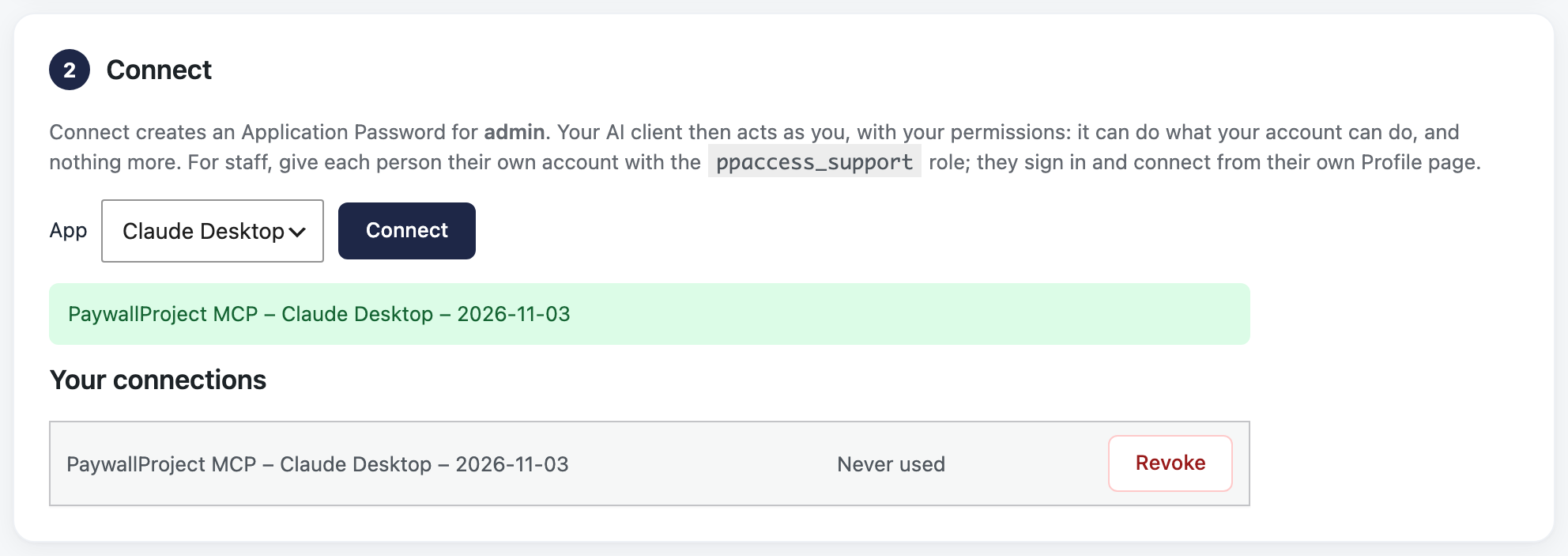
Setup takes one screen, under Settings → AI and MCP. One button installs the free MCP Adapter plugin. Connect makes a password for your app. You copy the ready-made setup into your app, then click Test connection to check it works. If the test fails, it tells you why. MCP needs WordPress 6.9 or newer. Connect an AI app to PaywallProject.
What the AI app can do
The app gets 63 tools. It can look up subscribers, payments, reading history and article access. It can also do support work: cancel or resume a subscription, change a plan, resend a welcome email, or add gift articles. Connected with an administrator account, it can also manage levels, coupons, groups, emails and most settings.
You stay in control:
- It acts as you. The app can only do what the WordPress account behind it can do. The new PaywallProject Support role lets staff help readers, but not refund or change settings.
- Money needs a preview. Before a refund or a plan change, the app must get a preview of the amount. Nothing happens until you approve it.
- Changes are limited. Each connection can make 30 changes per minute. Looking things up doesn’t count.
- Every change is logged. An audit log records who made each change, through which connection, and what happened. A subscriber’s changes show in the History box on their page.
MCP is optional. Nothing changes on your site until you set it up. What your AI app can do in PaywallProject.
Billing in wp-admin
Refund a payment from the transaction page
Administrators can now refund a Stripe payment without leaving WordPress. Open the payment under Transactions and find the new Refund card. It shows how much you can still refund. Refund the full amount or type a smaller one.
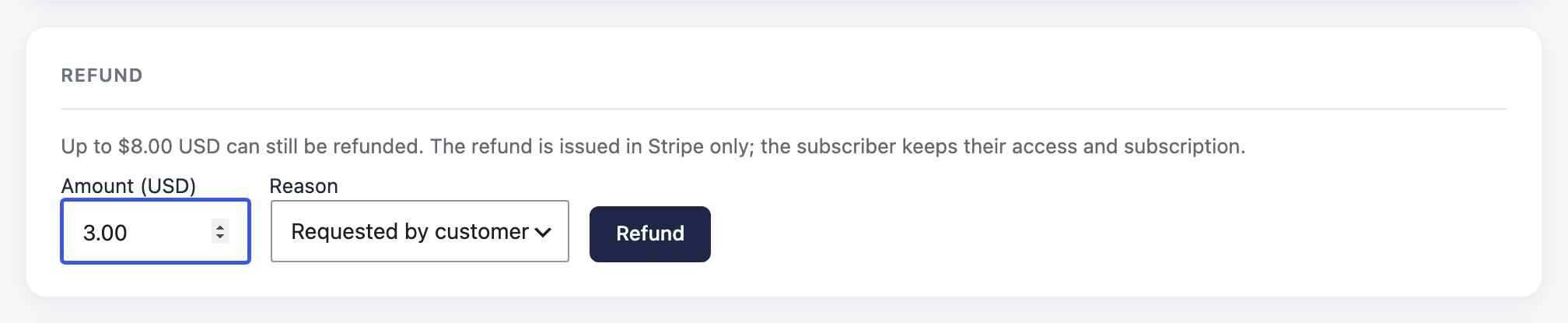
You must choose a reason, and Stripe stores it with the refund. Before the refund goes through, you confirm the amount. A partial refund now shows as Partially refunded, and you can filter the Transactions list by it. A refund only returns money. The reader keeps their access until you cancel the subscription too. How to refund a subscriber.
Cancel, resume or reactivate a subscription
Each subscriber’s page now has a Subscription card with buttons that fit their status. Cancel at period end stops renewal, and the reader keeps what they paid for. Cancel now ends access and billing at once. If the reader changes their mind before the end date, Resume undoes the cancel.
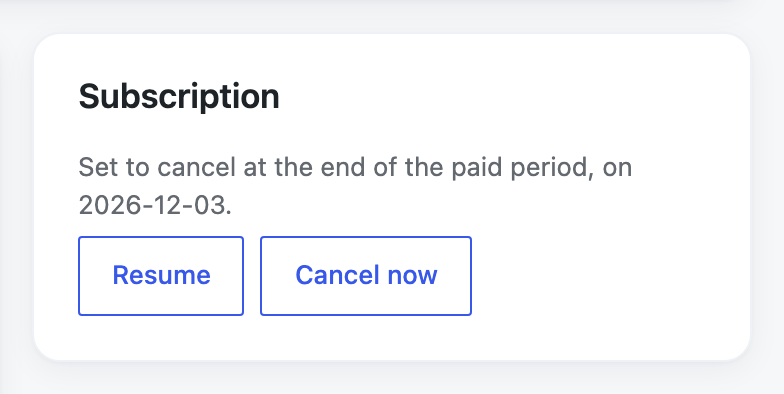
To bring back a canceled or expired reader, set their Status to Active and save. If they have a card saved in Stripe, PaywallProject starts a new subscription for their level. Every action changes Stripe first, so Stripe and your site stay in step. If Stripe refuses, nothing changes on your site. Cancel, resume or reactivate a subscription.
Plan changes with a price preview
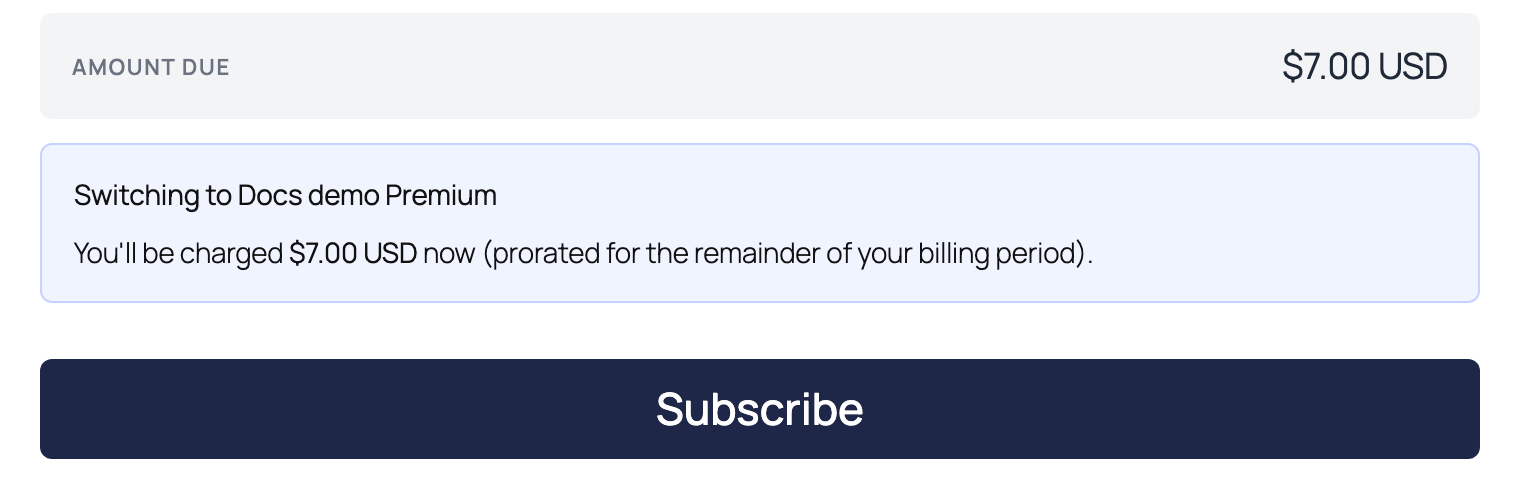
Readers can switch plans on their own account page, where they see the prorated amount before they confirm. Now the charge always matches that preview. Staff can change a plan through a connected AI app, which also shows the price preview first. There’s no plan change button in wp-admin.
Win back checkouts
Abandoned-checkout reminders
Some readers start to subscribe and leave before they pay. PaywallProject can now email them up to two reminders, each with a link back to their checkout. That includes readers who only typed their email and left before an account was made.
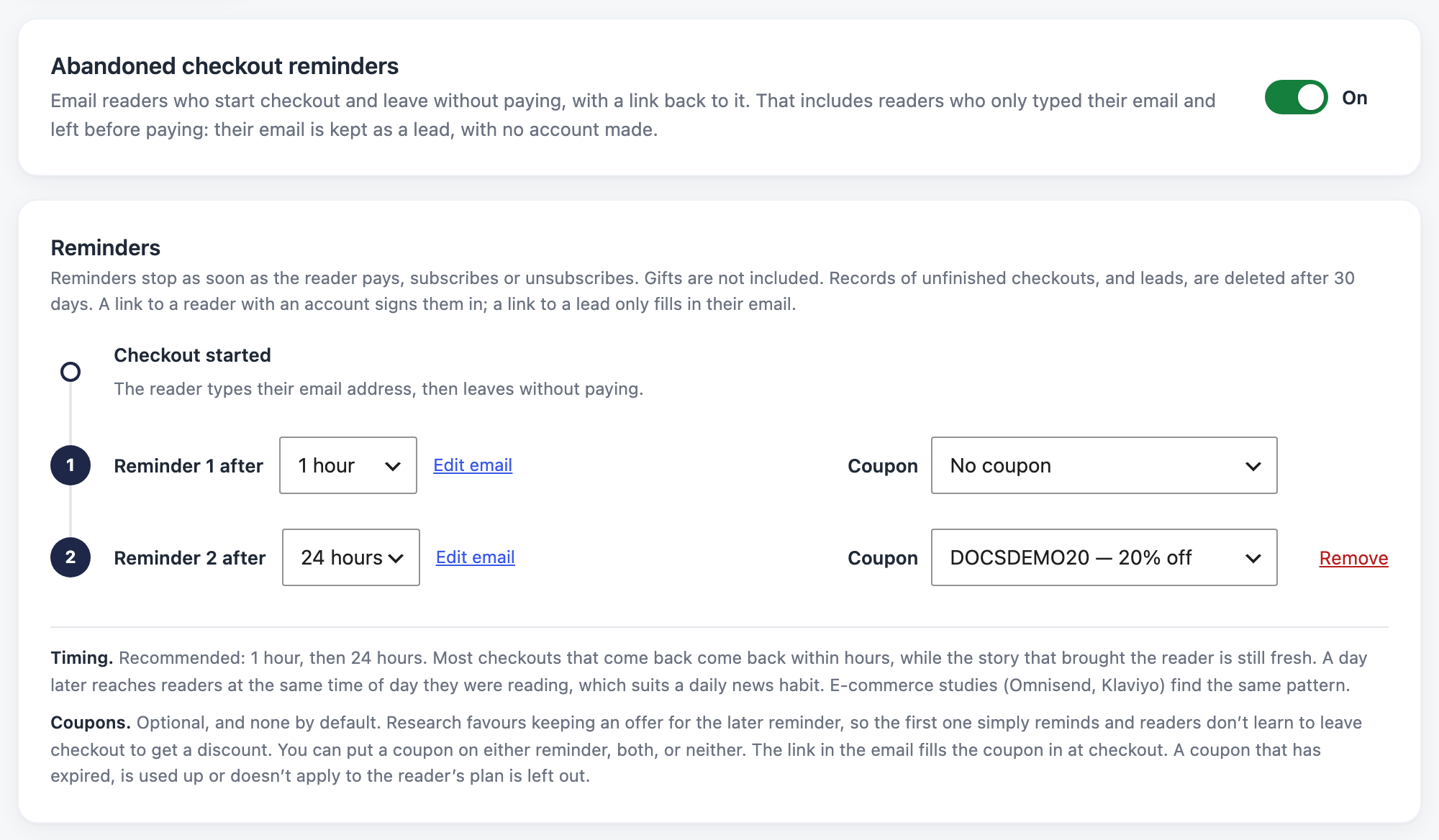
You choose when each reminder goes. We recommend 1 hour, then 24 hours. Each reminder can carry its own coupon, and the link fills it in at checkout. We suggest you keep an offer for the second reminder, so readers don’t learn to leave checkout to get a deal.
Reminders never lead a reader to pay twice. Before each email, PaywallProject checks Stripe. A reader is only reminded when Stripe shows they never paid. Reminders stop as soon as the reader pays or unsubscribes, and every reminder has a one-click unsubscribe link.
Reminders are off by default. To turn them on, go to Settings → Abandoned checkout and add your postal address, which anti-spam laws require. A privacy notice about reminders can show on the checkout form. It’s hidden by default, with a setting to show it. Abandoned-checkout reminders.
Sign in at checkout
Some readers come back to checkout with an email that already has an account. Maybe they subscribed before, or left an earlier checkout. The Step by step checkout layout already asked these readers to sign in. Now the default and hosted layouts do too: checkout spots the account as soon as they enter their email, a sign-in step appears right under the email field, and payment waits until they sign in.
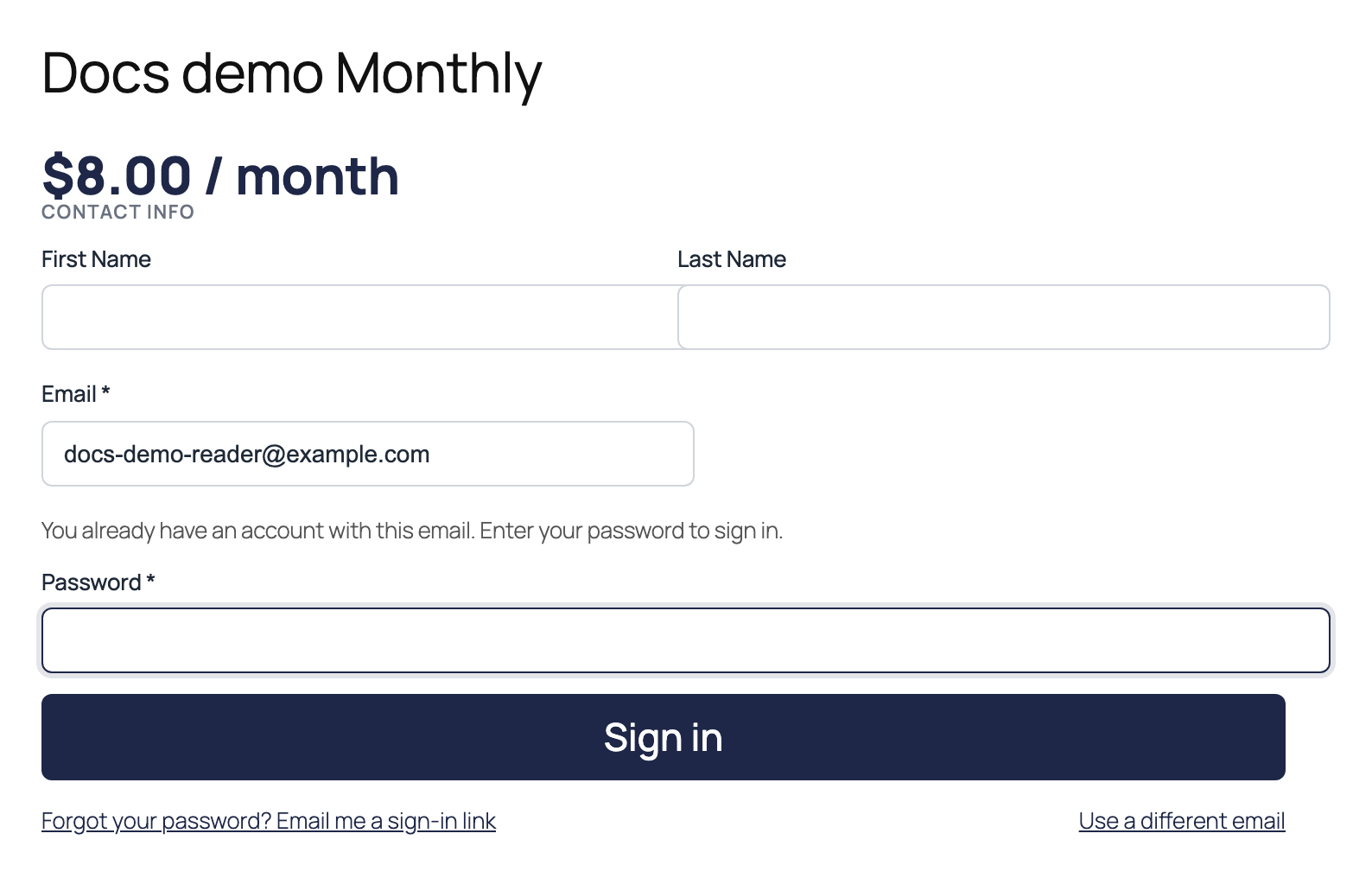
Readers who forgot their password can ask for a sign-in link by email. Typing an email sends nothing. A link only goes out when the reader asks for one. Sign-in attempts are throttled, to stop password guessing. There’s nothing to set up. Sign in at checkout.
Protect your content
Protected e-edition PDFs
Your e-edition page may be behind the paywall, but the PDF file often isn’t. Anyone who finds its address, for example in Google, can open it. Now PaywallProject can protect the file itself.
Turn it on under Settings → E-edition. Protected PDFs move to a private folder. Readers then get the file through an address that checks their subscription every time. You can protect the PDFs your dFlip flipbooks use, or every PDF. One button protects the PDFs you already have, and you can protect a single PDF from the media library.
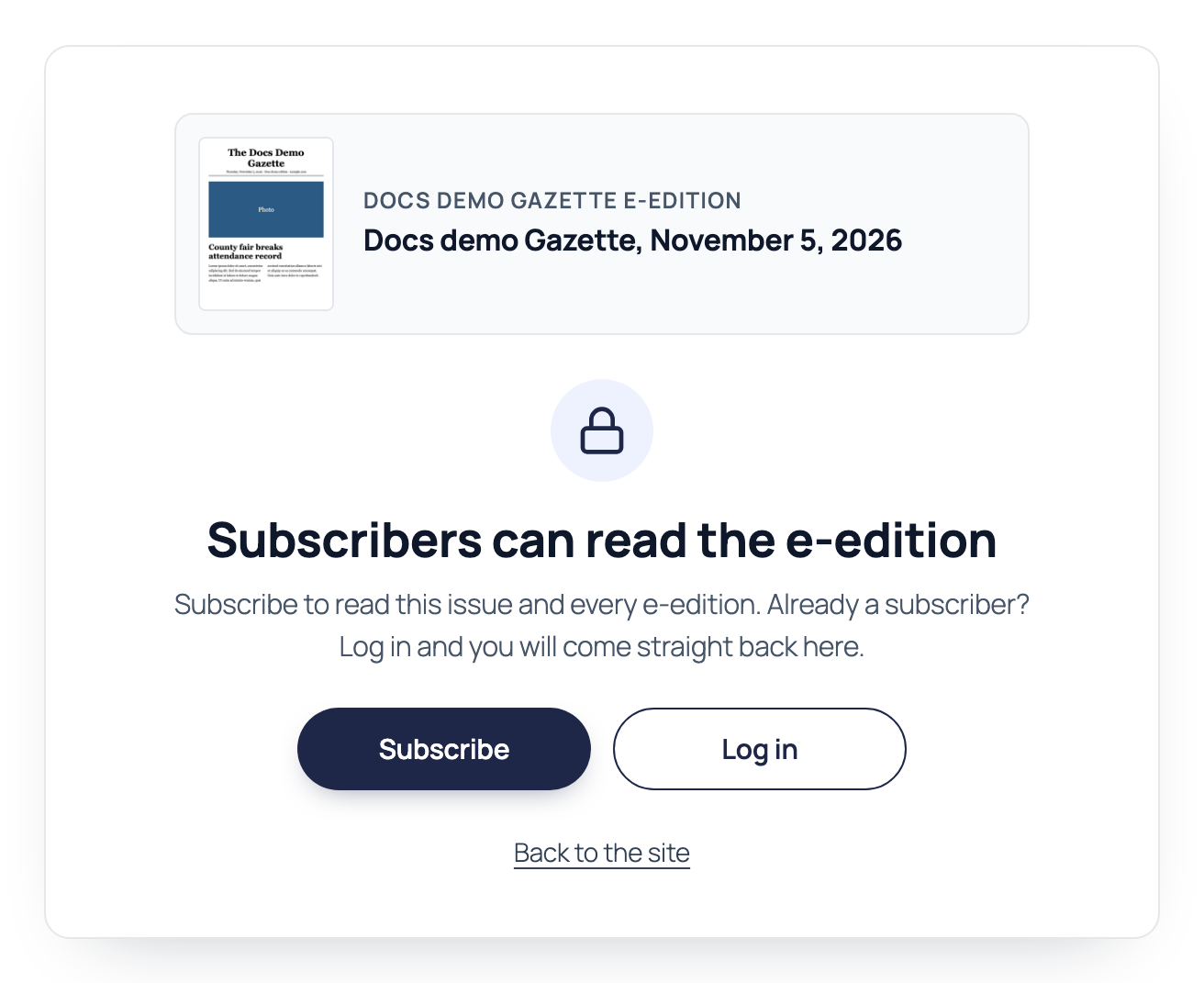
A reader without access gets an access page inside your site’s own header and footer, with the issue’s name and cover. You can edit its wording, button labels and links, and hide the cover. Restricting access to PDF e-editions.
Gift articles by category
Gift articles bring new readers to your site. But your investigations or premium sections may be why people pay. Each level can now limit gifts to some categories, or allow all categories except some.
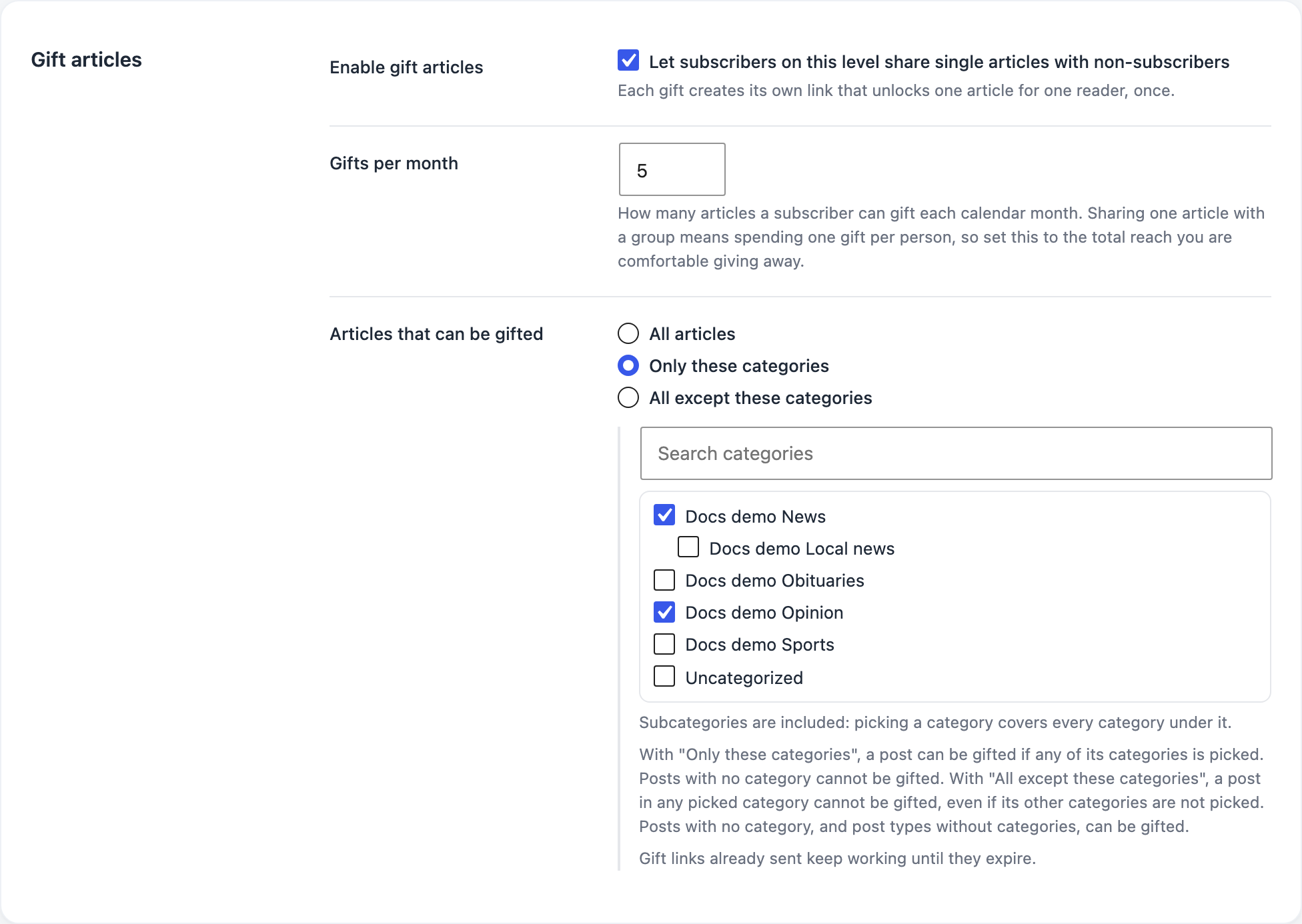
Readers only see the gift option on stories they can gift. A category you pick includes its subcategories. Your existing levels keep gifting all articles until you change them. Allow subscribers to gift articles.
Also improved
- Reconcile with Stripe. The tool now also finds readers who are active on your site but whose Stripe subscription has ended. It scans first and changes nothing until you confirm, and you can undo a run. It pages through large Stripe accounts and skips lifetime levels. Reconcile subscribers with Stripe.
- Clearer email templates. The email editor now says who gets each template, and when.
How to update
If PaywallProject hosts your site, we update it for you.
Running PaywallProject on your own hosting? In your WordPress dashboard, go to Dashboard → Updates and update PaywallProject to 4.1.0. MCP, abandoned-checkout reminders and PDF protection stay off until you turn them on. The full list of changes is on the changelog.
New to PaywallProject? It’s the managed WordPress paywall for local news, set up and run by our team. Get started or book a 30-minute call.